OS profiles and snapshots
This page explains OS profiles and snapshots in Flipper OS, how to use them, and how to manage them using CLI helper tools.
Introduction
When a Linux device is used as a multitool, in roles like a Wi-Fi router, a media box, and a desktop, it gradually accumulates installed packages, modified config files, and saved data. Eventually, the system becomes too messy to use, and the only solution is to reinstall it from scratch. With a multitool, users often need to switch between setups, save a working state before experimenting, and roll back after breaking things.
Flipper OS
OS profiles
Flipper OS introduces the concept of OS profiles. An OS profile is an isolated system you can boot into and use: install new packages with apt, change config files, and do whatever you want with it.
Flipper One has several OS profiles specialized for different roles, such as Desktop, TV media box, or Router — and you can add more. You can select OS profiles in the boot menu:
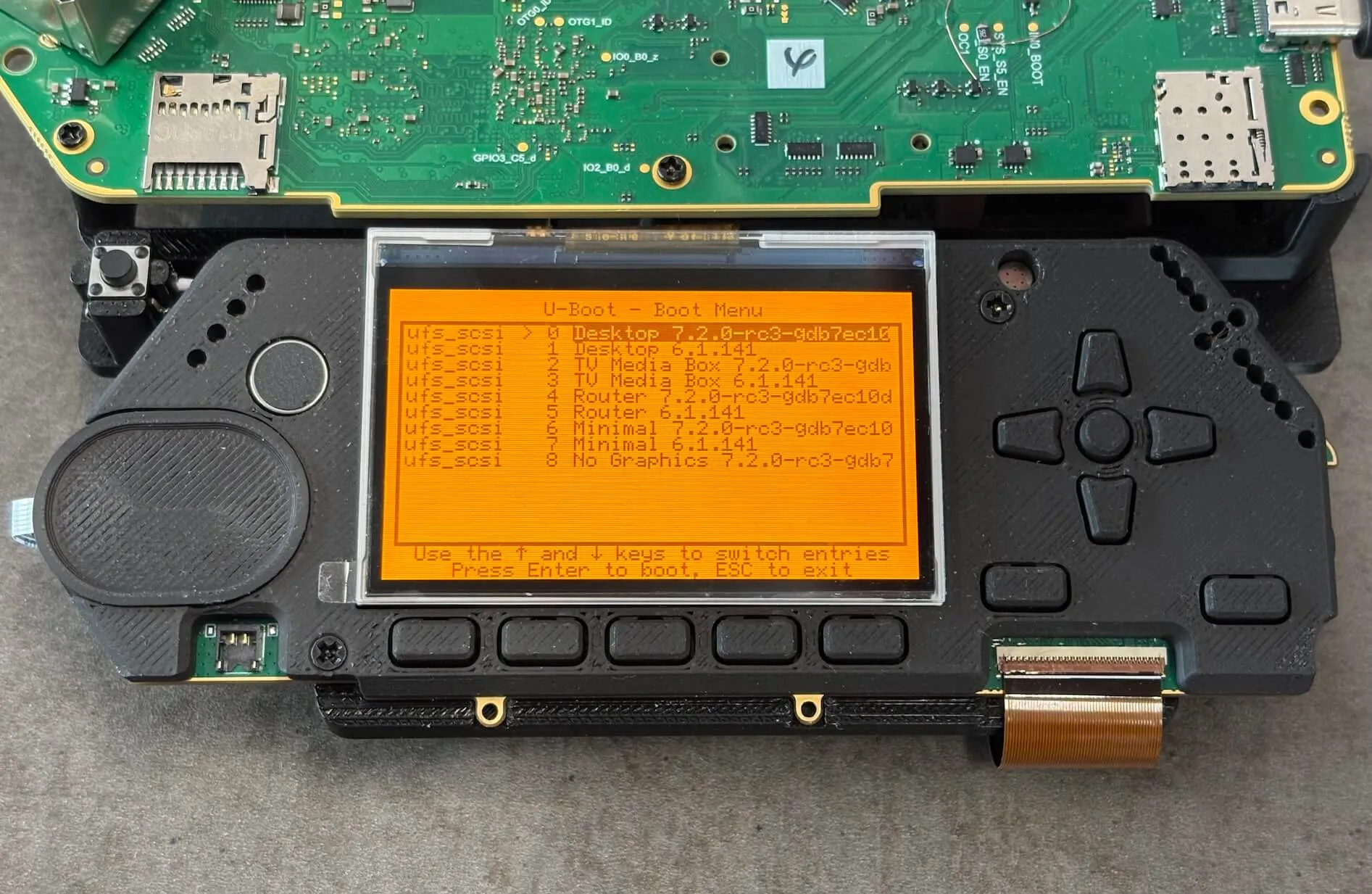
A profile contains a Linux kernel and a / root directory including the desktop environment, installed packages, and configuration files. However, several directories are shared between all profiles:
- /home — user home directories
- /var/log — logs
- /var/cache — application cache
Shared directories allow you to preserve logs and exchange files between OS profiles. For example, you can reboot Flipper One into desktop mode to study logs produced in router mode. Switching profiles changes how the system behaves without touching /home, and a deleted or broken profile cannot affect any of the shared volumes.
Internally, Flipper OS uses Btrfs to implement the functionality of OS profiles, snapshots, the common boot menu, and shared directories.
Snapshots
While you work in an OS profile, you can save its state in a read-only copy called a snapshot. For example, you can make a snapshot as a save point before a risky change. If something goes wrong, you can always restore a profile to a working state. You can also save a successful configuration in a snapshot, and then create new profiles from it.
Snapshots are not bootable and do not appear in the boot menu. It usually takes a few seconds to create an OS profile from a snapshot. You don't need to use an external SD card or wait for the system to install.
Stock snapshots
Stock snapshots are a special type of snapshot preloaded on Flipper One and used to initialize starting OS profiles. New versions of stock snapshots can be downloaded from an update server. You can use stock snapshots to create new OS profiles.
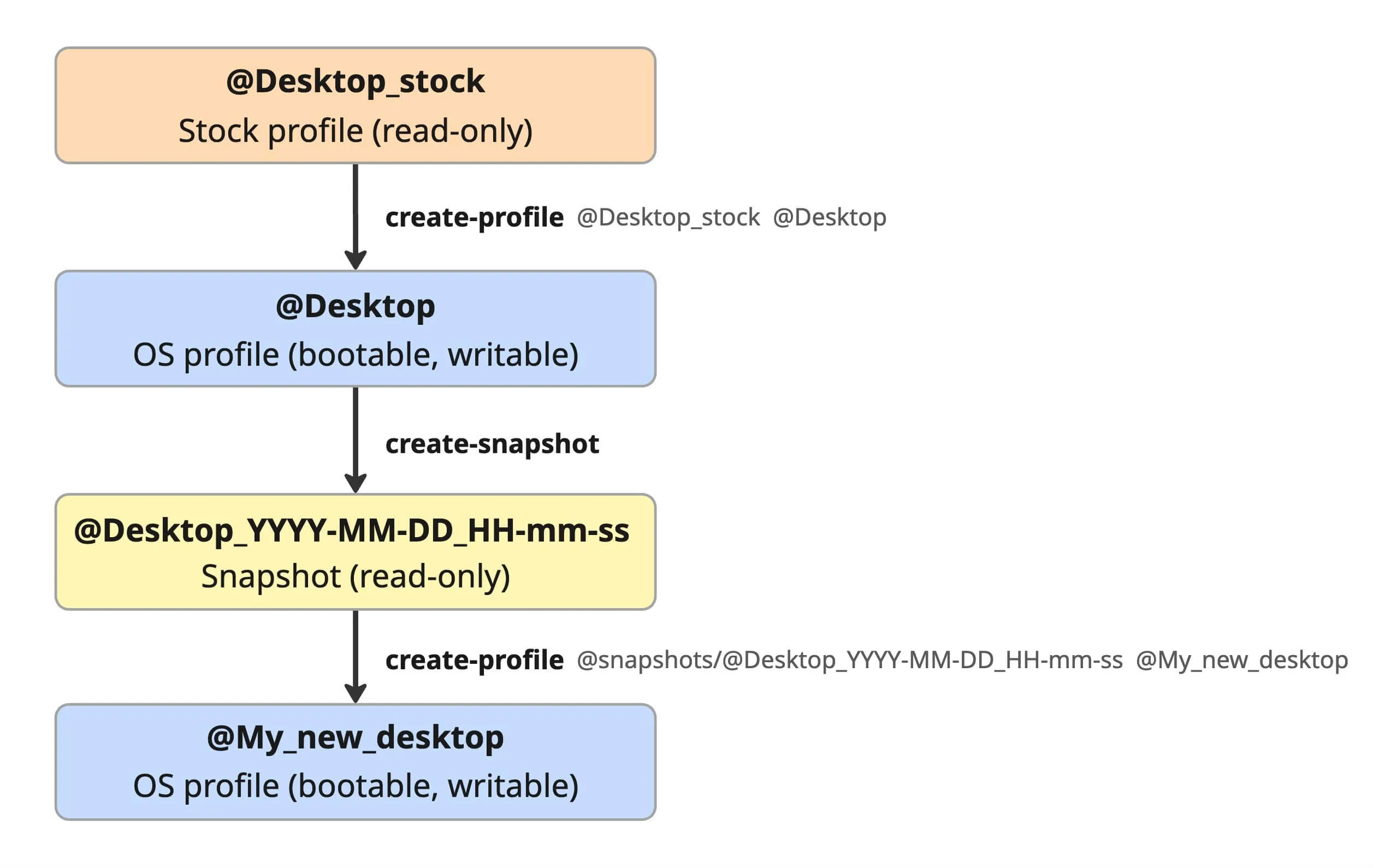
Stock snapshot names match initial OS profile names:
- Desktop_stock → Desktop
- Router_stock → Router
- TV-Media-Box_stock → TV-Media-Box
- No_Graphics_stock → No_Graphics
- Minimal_stock → Minimal
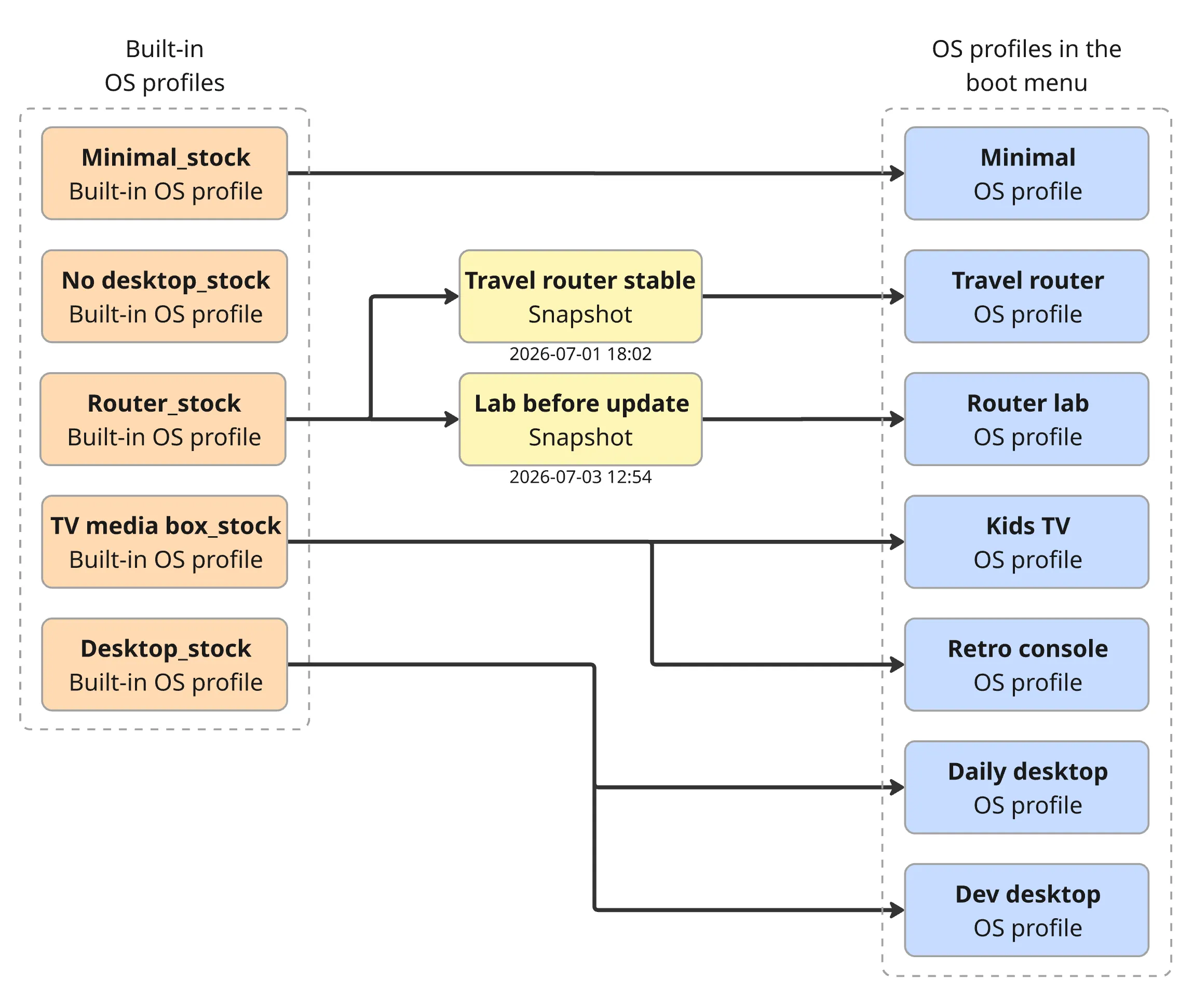
However, you can rename profiles, create new ones or delete those you don't need.
Disk space usage
Flipper OS uses Btrfs, which is a copy-on-write (CoW) file system. When you create a snapshot or a new profile, no data is duplicated on disk, so no extra space is consumed. When you make changes in a profile, only the changed blocks are written anew, and everything else is shared between the original and the copy. This means you can keep multiple profiles and snapshots without using proportionally more disk space.
Profile and snapshot CLI
You can create snapshots, add new profiles, and do other things using the command line interface (CLI) from any Flipper OS profile. The CLI commands are included in the Flipper OS distribution and instantly available on Flipper One.
CLI commands are preinstalled system-wide, and you can run them from any directory. All commands need administrator rights, so you need to start each with sudo. The first time you use sudo in a session, it asks for your password, which is normal.
CLI command quick reference
I want to... | Command |
|---|---|
List existing profiles | sudo list-profiles |
List existing snapshots | sudo list-snapshots |
See space used per profile/snapshot | sudo btrfs-show-space |
Save a restore point | sudo create-snapshot [name] |
Create a profile from a stock snapshot | sudo create-profile @X_stock @New |
Create a profile from the current profile | sudo create-profile @X @New |
Restore a profile from a snapshot | sudo create-profile @snapshots/... @New |
Rename a profile | sudo rename-profile @Old @New |
Delete a profile | sudo delete-profile @Name |
Delete a snapshot | sudo delete-snapshot @snapshots/... |
Back up to a file or USB | sudo send-snapshot @X /path/or/dir |
Restore a backup file | sudo receive-snapshot <file> |
Maintain the disk health | sudo btrfs-maintenance all |
Rule of thumb: always make a snapshot before you experiment, and keep a _stock around as your always-safe fallback.
Each CLI command accepts the -h (--help) flag for a quick reminder of what it does; for example, create-profile -h.
List existing profiles
Use list-profiles to view existing OS profiles, the currently booted profile, and the profile inheritance:
$ sudo list-profiles

booted profile: @Desktop (id 265)

NAME                 KIND     ID   CREATED              RO  PARENT
@Desktop             profile  265  2026-07-03 12:14:21  rw  @Desktop_stock (264)       <- booted
@Desktop_stock       stock    264  2026-07-03 12:10:22  ro  @Minimal_stock (262)
@Minimal             profile  263  2026-07-03 12:10:22  rw  @Minimal_stock (262)
@Minimal_stock       stock    262  2026-07-03 12:10:22  ro  -
@Router              profile  269  2026-07-03 12:14:55  rw  @Router_stock (268)
@Router_stock        stock    268  2026-07-03 12:14:54  ro  @Minimal_stock (262)
@TV-Media-Box        profile  267  2026-07-03 12:14:54  rw  @TV-Media-Box_stock (266)
@TV-Media-Box_stock  stock    266  2026-07-03 12:14:21  ro  @Minimal_stock (262)
Shows the profile list, which one is currently booted, and which are built-in (stock).
Make a snapshot as a save point
You can make a snapshot as a save point before making an important change or a risky action. The create-snapshot command demonstrated below creates a snapshot based on your currently booted profile:
$ sudo create-snapshot

created @snapshots/@Desktop_2026-07-03_14-02-25 (read-only)
You can specify the snapshot label:
$ sudo create-snapshot Test

created @snapshots/@Desktop_2026-07-03_14-02-22_Test (read-only)
Restore a profile from a snapshot
The create-profile command takes a snapshot and turns it into a bootable profile @MyDesktop. This is how you "go back" to a saved state.
$ sudo create-profile @snapshots/@Desktop_2026-07-03_14-02-22_Test @MyDesktop

Create bootable profile "@MyDesktop" with a writable copy of @snapshots/@Desktop_2026-07-03_14-02-22_Test on /dev/sda2? [y/N] y
flipper-bls: wrote entry for @MyDesktop (kernel 7.1.0-g5f8b21274ff4, slot 92)
profile '@MyDesktop' created from '@snapshots/@Desktop_2026-07-03_14-02-22_Test' (writable, boot entry added)
reboot and pick '@MyDesktop' from the boot menu to use it
List existing snapshots
$ sudo list-snapshots

NAME                                            ID   CREATED              PARENT
@snapshots/@Desktop_2026-07-03_14-02-22_Test    272  2026-07-03 14:02:22  @Desktop (265)
@snapshots/@Desktop_2026-07-03_14-02-25         273  2026-07-03 14:02:25  @Desktop (265)
Shows every saved snapshot and which profile it came from.
Make a new profile from a stock snapshot
You can make a new profile from a stock profile using create-profile:
$ sudo create-profile @Desktop_stock @DesktopTest

Create bootable profile "@DesktopTest" with a writable copy of @Desktop_stock on /dev/sda2? [y/N] y
flipper-bls: wrote entry for @DesktopTest (kernel 7.1.0-g5f8b21274ff4, slot 92)
profile '@DesktopTest' created from '@Desktop_stock' (writable, boot entry added)
reboot and pick '@DesktopTest' from the boot menu to use it
The command above creates a fresh, bootable @DesktopTest from the @Desktop_stock profile. You can now reboot and pick @DesktopTest from the boot menu.
Make a new profile from the booted profile
You can also make a new profile straight from your currently booted profile (including all your changes):
$ sudo create-profile @Desktop @DesktopTest2

Create bootable profile "@DesktopTest2" with a writable copy of @Desktop on /dev/sda2? [y/N] y
flipper-bls: wrote entry for @DesktopTest2 (kernel 7.1.0-g5f8b21274ff4, slot 92)
profile '@DesktopTest2' created from '@Desktop' (writable, boot entry added)
reboot and pick '@DesktopTest2' from the boot menu to use it
Creates @DesktopTest2 as a copy of Desktop as it is right now.
Rename a profile
The rename-profile command renames the profile and updates its boot menu entry. Profile content stays unchanged. You cannot rename the profile you are currently booted into, so boot into another one first.
$ sudo rename-profile @DesktopTest @Playground

renamed @DesktopTest -> @Playground
flipper-bls: reissued boot entry for @Playground
View disk space used by profiles and snapshots
$ sudo btrfs-show-space

Filesystem  28.00GiB, used 6.42GiB (22%)

NAME            UNIQUE    REFERENCED  TOTAL
@Desktop        412.0MiB  3.10GiB     4.85GiB   <- booted
@Desktop_stock  0.0B      2.98GiB     4.61GiB
@Minimal        8.0MiB    1.42GiB     1.90GiB
@Minimal_stock  0.0B      1.41GiB     1.88GiB
Profiles and snapshots share most of their data, so they take far less room than the sizes suggest. The columns:
- UNIQUE: data only this one holds. This is roughly what you get back if you delete just this one and keep the rest.
- REFERENCED: its real on-disk size (compressed). Because data is shared, these don't add up across rows.
- TOTAL: the apparent, uncompressed size.
Add -q (sudo btrfs-show-space -q) for a faster run that skips the REFERENCED column.
Delete a profile or snapshot
Use delete-profile to delete a profile and remove it from the boot menu:
# sudo delete-profile @DesktopTest2

Delete profile '@DesktopTest2'? [y/N] y
deleted @DesktopTest2
removed boot entry /boot/loader/entries/92-DesktopTest2-flipperos-DesktopTest2-7.1.0-g5f8b21274ff4.conf
Use delete-snapshot to delete a snapshot you no longer need:
$ sudo delete-snapshot @snapshots/@Desktop_2026-07-03_14-08-44_Minimal-DeleteMe

Delete restore-point snapshot '@snapshots/@Desktop_2026-07-03_14-08-44_Minimal-DeleteMe'? [y/N] y
deleted @snapshots/@Desktop_2026-07-03_14-08-44_Minimal-DeleteMe
Each command asks for a y/N confirmation first, so a typo won't wipe anything by accident. You will need to confirm twice to delete a read-only target, and three times to delete a stock snapshot.
Maintain the disk health
btrfs-maintenance runs housekeeping across all your profiles and snapshots. For everyday maintenance, use the all parameter:
sudo btrfs-maintenance allThis command does three actions in the following order:
- check: a read-only scrub that verifies every checksum (finds silent corruption, changes nothing).
- dedup: reclaims space by sharing identical data between profiles and snapshots.
- balance: tidies partly-empty storage chunks so free space is usable again.
You can also run any action on its own: sudo btrfs-maintenance check, dedup, or balance. There is also the fix action, a scrub that repairs damage where a good copy exists. The full btrfs-maintenance all call can take a while on a busy disk, so it's best to run it when you don't need the device urgently.
Advanced: "move" a snapshot into a profile
The create-profile -m command moves the snapshot into the new profile instead of copying it: the snapshot is consumed (gone afterward), but its parent link is kept. Most people don't need this. It's mainly useful for incremental backup transfers (see below). If in doubt, use the normal copy above.
$ sudo create-profile -m @snapshots/@Desktop_2026-07-03_14-02-22_Test @MyDesktop2

Create bootable profile "@MyDesktop2" by MOVING @snapshots/@Desktop_2026-07-03_14-02-22_Test into it (source consumed, parent preserved) on /dev/sda2? [y/N] y
flipper-bls: wrote entry for @MyDesktop2 (kernel 7.1.0-g5f8b21274ff4, slot 92)
profile '@MyDesktop2' moved from '@snapshots/@Desktop_2026-07-03_14-02-22_Test' (writable, boot entry added)
reboot and pick '@MyDesktop2' from the boot menu to use it
(source consumed; parent_uuid preserved)
Advanced: back up and restore profile to a file or USB
You can keep your profiles and snapshots backed up off the device:
- The send-snapshot command writes a profile or snapshot out to a file (or a folder, or straight over ssh).
- The receive-snapshot command reads a profile or snapshot back in.
Back up a profile to a USB stick (a read-write profile is snapshotted read-only for you first, and that restore point is kept):
sudo send-snapshot @Desktop /mnt/usb/Restore it later, on this or another Flipper One:
sudo receive-snapshot /mnt/usb/Desktop_2026-07-03_14-02-22_pack.zstThe restored copy lands under @snapshots as read-only; turn it into a bootable profile with create-profile.
For backup chains you can send only what changed since a previous backup with -i (against the profile's _stock base) or -p PARENT (against a specific earlier snapshot). Incremental restores need that parent to already exist on the receiving device.
Explanation
Subvolume mounting
Each profile's root is a separate subvolume mounted to the filesystem root (/). A special boot subvolume mounted to /boot contains Linux kernels and boot configuration for all profiles. The /boot directory is also shared; however, there is an isolated kernel for each OS profile.