Features
This page covers high-level product features expressed as user stories. Each feature describes a practical benefit for the user and a real use case.
Network
Features related to IP networking, internet access, sharing, and filtering.
Classic Wi-Fi router
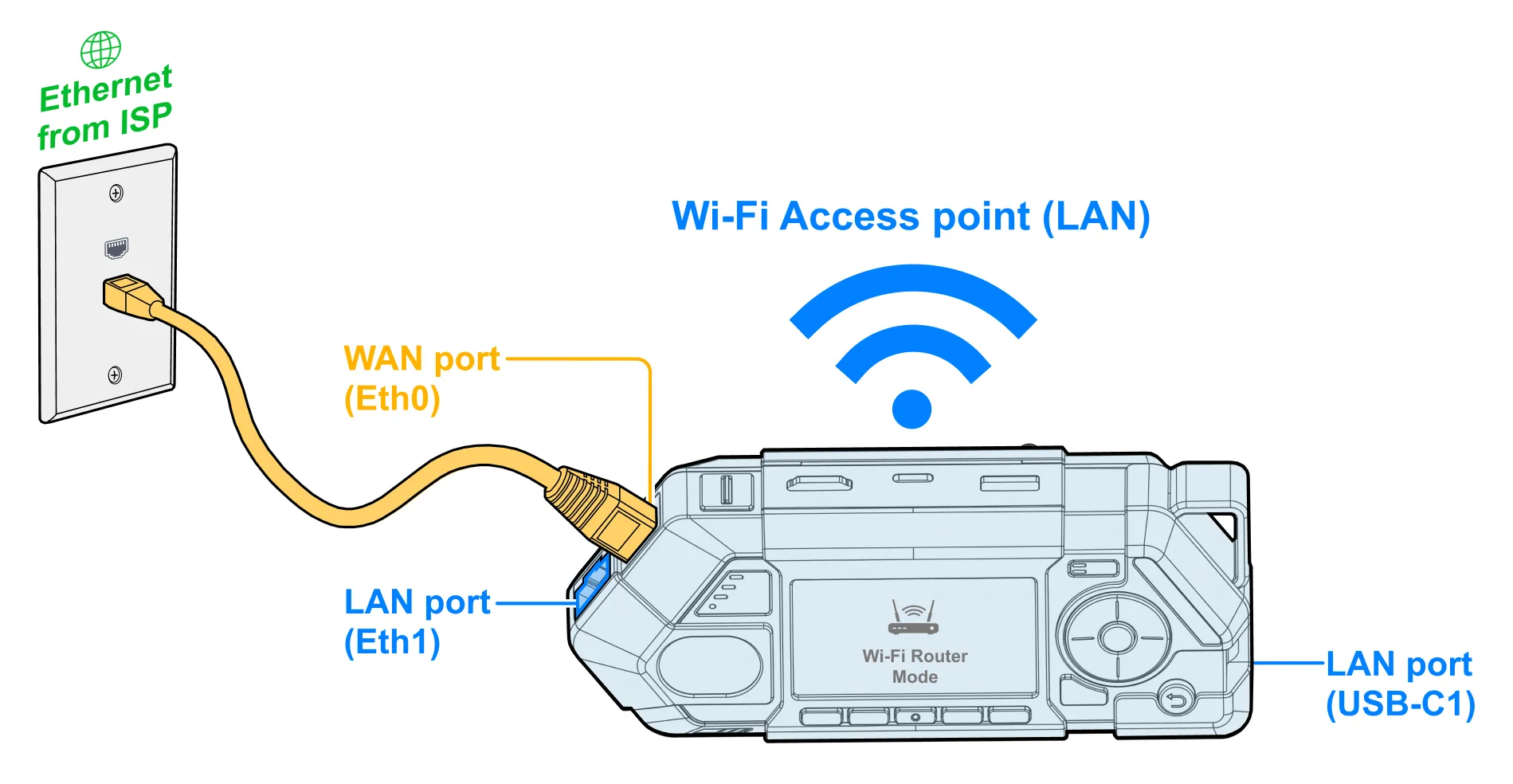
A basic Wi-Fi router with NAT and a built-in DHCP server. Eth0 is used as the WAN port. The remaining interfaces act as LAN interfaces: Wi-Fi access point, Eth1, and USB Ethernet adapters.
User story
I have an Ethernet cable with internet access and need to share it via Wi-Fi and a second Ethernet port. I want to replace my old, slow Wi-Fi access point with Flipper One and use fast Wi-Fi 6 to distribute my wired internet connection.
Optionally, I want to add traffic filtering, bandwidth shaping, ad blocking, or basic security monitoring.
Multi-PHY Wi-Fi (concurrent STA + AP)
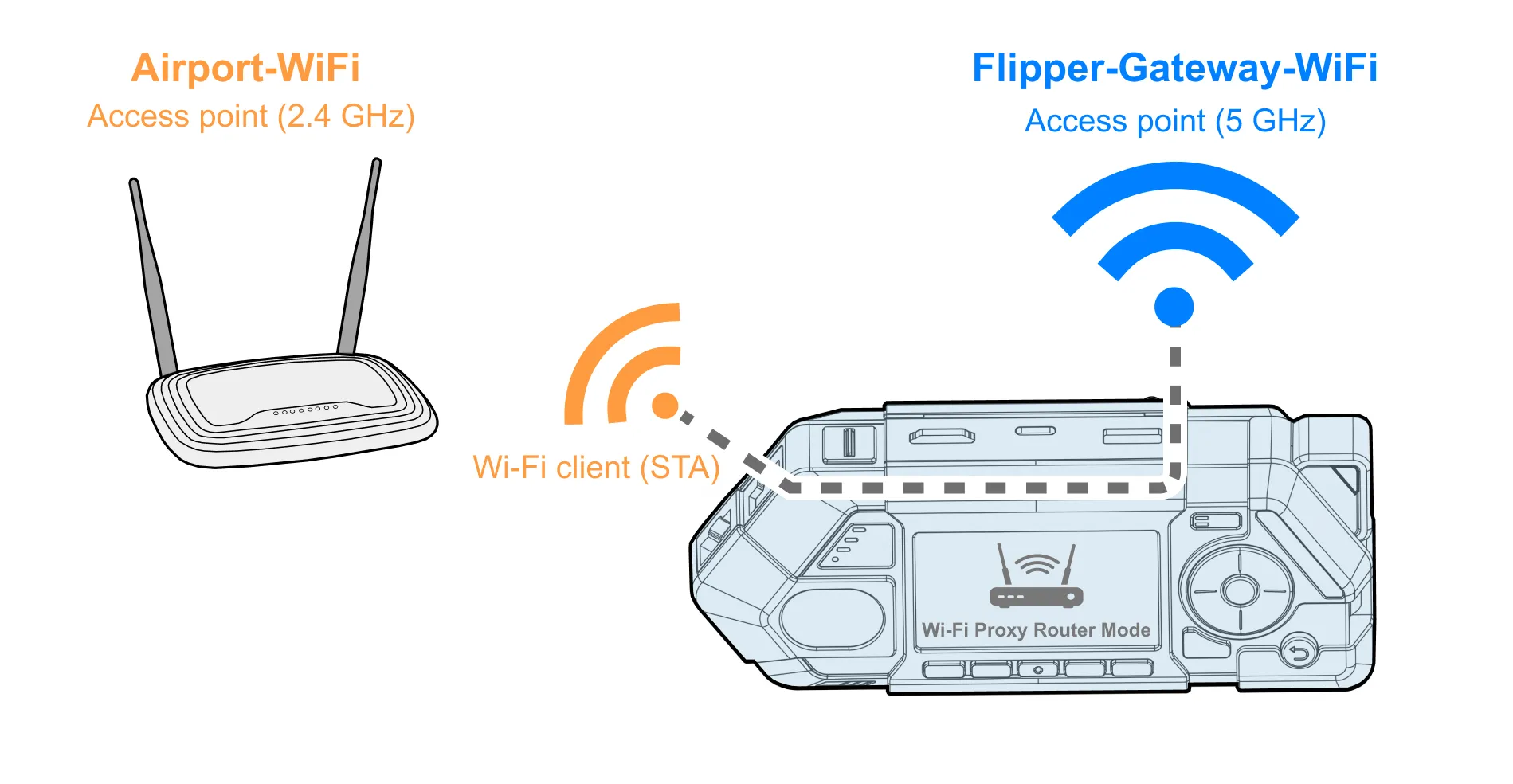
A single Wi-Fi chipset can operate simultaneously in client (STA) and access point (AP) modes. Ideally, each frequency band (e.g., 2.4 GHz and 5 GHz) works as an independent interface, allowing concurrent uplink and downlink over different PHYs.
User story
I have paid Wi-Fi access that is limited to a single device (one MAC address), but I want to share the connection with my family. I connect Flipper One to the paid Wi-Fi network as a client on one band (for example, 2.4 GHz) and re-share the internet over another band (for example, 5 GHz) as a local access point.
To pass the captive portal authorization, I connect my phone to Flipper One’s 5 GHz access point and complete the login flow. After that, all devices connected to Flipper One get internet access through the same uplink.
USB Wi-Fi / Ethernet adapter
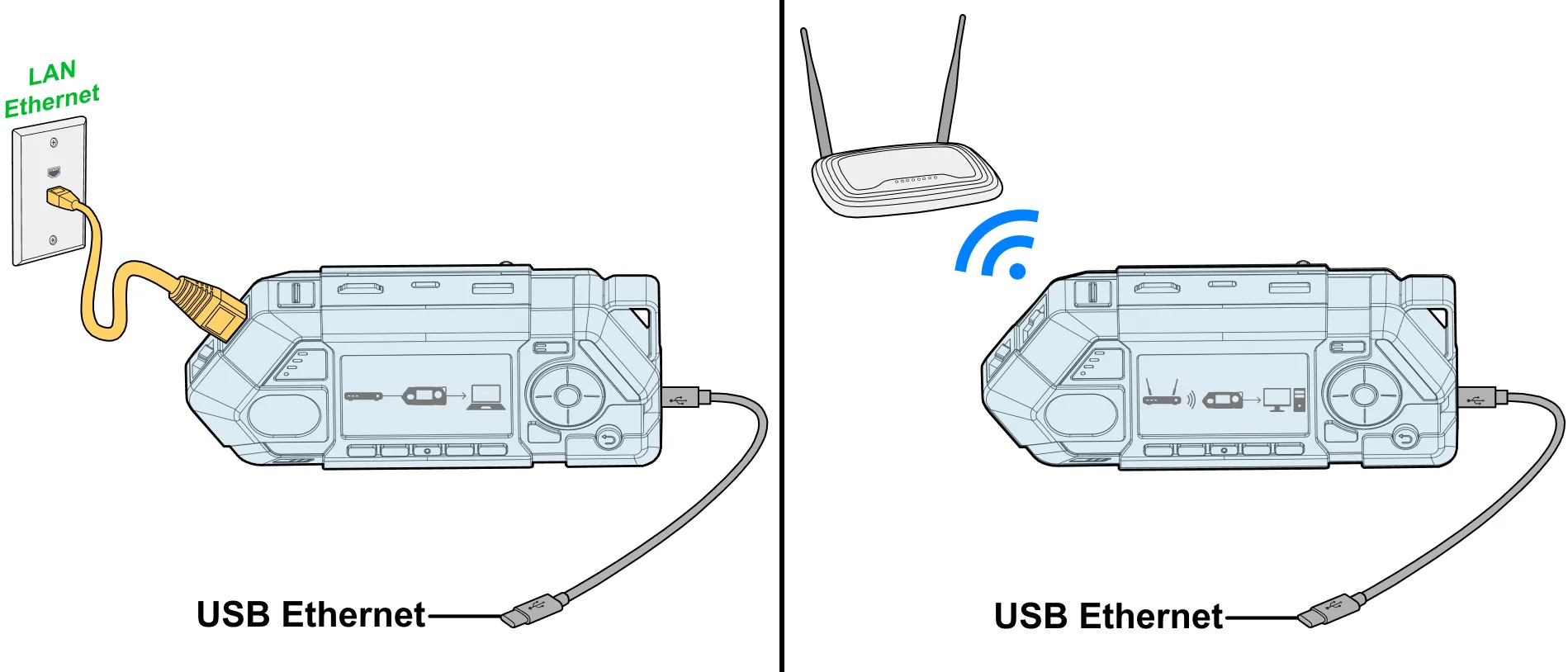
Flipper One can act as a USB network adapter by bridging either Wi-Fi (STA mode) or Eth0 to a USB Ethernet interface, with MAC address proxying. NAT is disabled in this mode. Wi-Fi STA proxying has limitations because Wi-Fi access points allow only a single client MAC address per connection. For this reason, the user must explicitly select this mode before connecting Flipper One to a Wi-Fi access point as a client.
User story
My PC has no built-in Wi-Fi or Ethernet interface. I want to use Flipper One as a USB network adapter. I want to transparently bridge all Layer-2 traffic to my PC, so that the upstream router sees my PC as a single device with a single MAC address. This gives me full access to the local network, including LAN devices, printers, mDNS/Bonjour services, and other local discovery protocols.
VPN gateway (leak-proof mode)
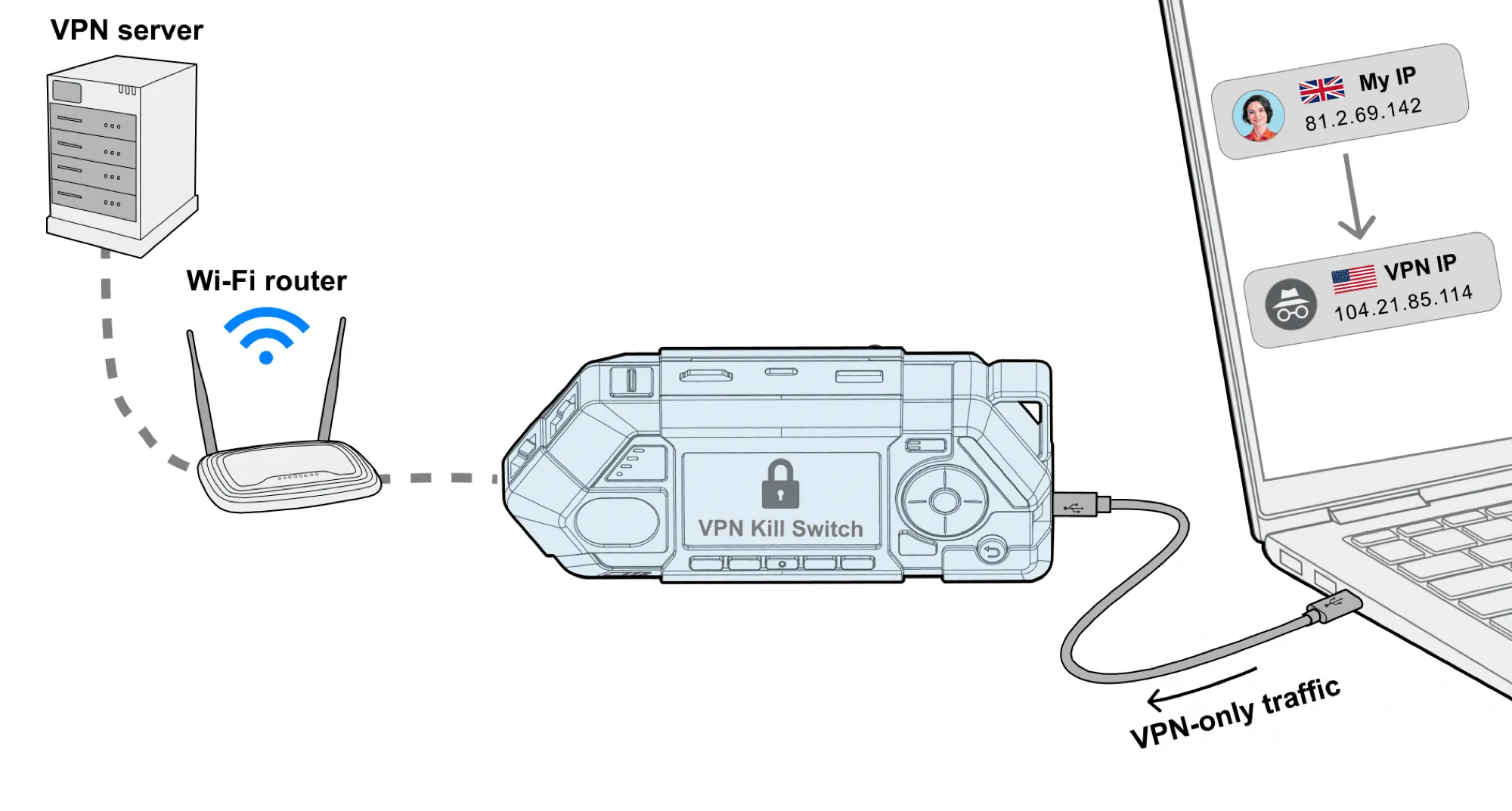
A router mode that tunnels all routed traffic through a VPN, preventing any direct internet access and eliminating traffic leaks. This includes protection against common leakage paths such as DNS and IPv6 traffic.
Flipper One supports popular VPN protocols, including WireGuard, IKEv2, and OpenVPN. Common VPN providers can be configured with one-click profiles for fast setup.
User story
There is no simple way to guarantee that all traffic from my phone or PC always goes through a VPN. Modern operating systems may leak traffic outside the tunnel (for example, DNS requests or IPv6 routes).
I want a dedicated device that guarantees all internet traffic is forced through a VPN tunnel. When I’m traveling or using untrusted networks, I connect my laptop or phone to Flipper One and let it handle the VPN connection. From the device’s point of view, the network is already “secure,” and it never has to manage VPN configuration itself.
Ethernet MitM sniffer
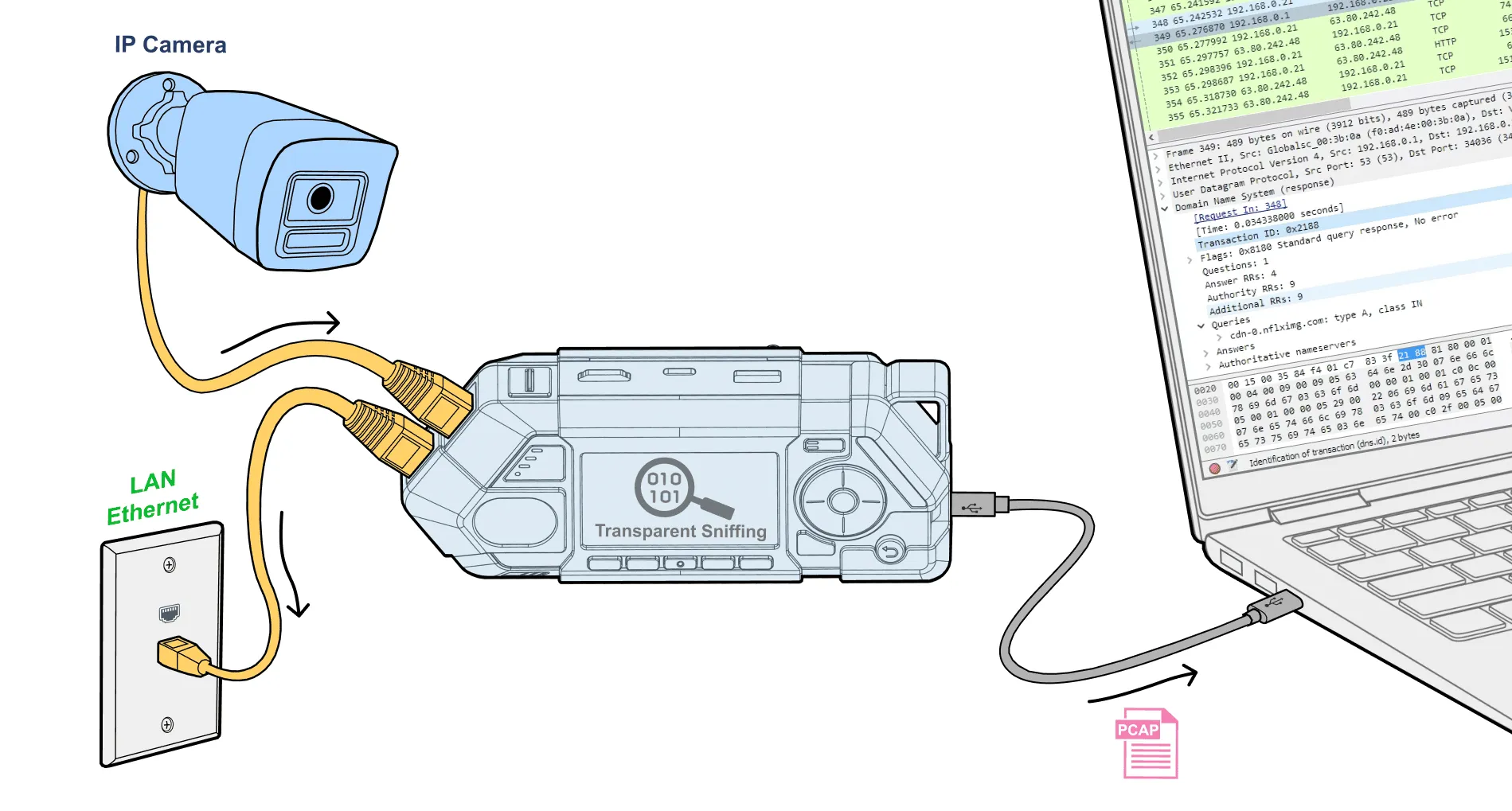
Flipper One can be placed inline between two Ethernet devices and operate as a fully transparent bridge. Both Eth0 and Eth1 ports form a pass-through link that is invisible to the monitored devices. The MAC addresses of Flipper One’s Ethernet interfaces are never exposed to the observed traffic.
This mode allows passive inspection and capture of network traffic without modifying the existing network topology or breaking the target device’s connectivity.
User story
I have an Ethernet device such as an IP camera or a VoIP phone, and I want to analyze and capture its network traffic to understand how it works: which IP addresses it connects to and which DNS names it resolves. I don’t want to disrupt the existing setup or make my own MAC address visible on the network.
To do this, I place Flipper One inline between the device and the wired network and enable transparent sniffing mode. I can view a compact, real-time traffic log on the built-in display (similar to tcpdump -q), save full packet captures as PCAP files to internal storage, or mirror traffic over USB Ethernet to a PC for live analysis in Wireshark or tcpdump.
LAN discovery (passive & active)
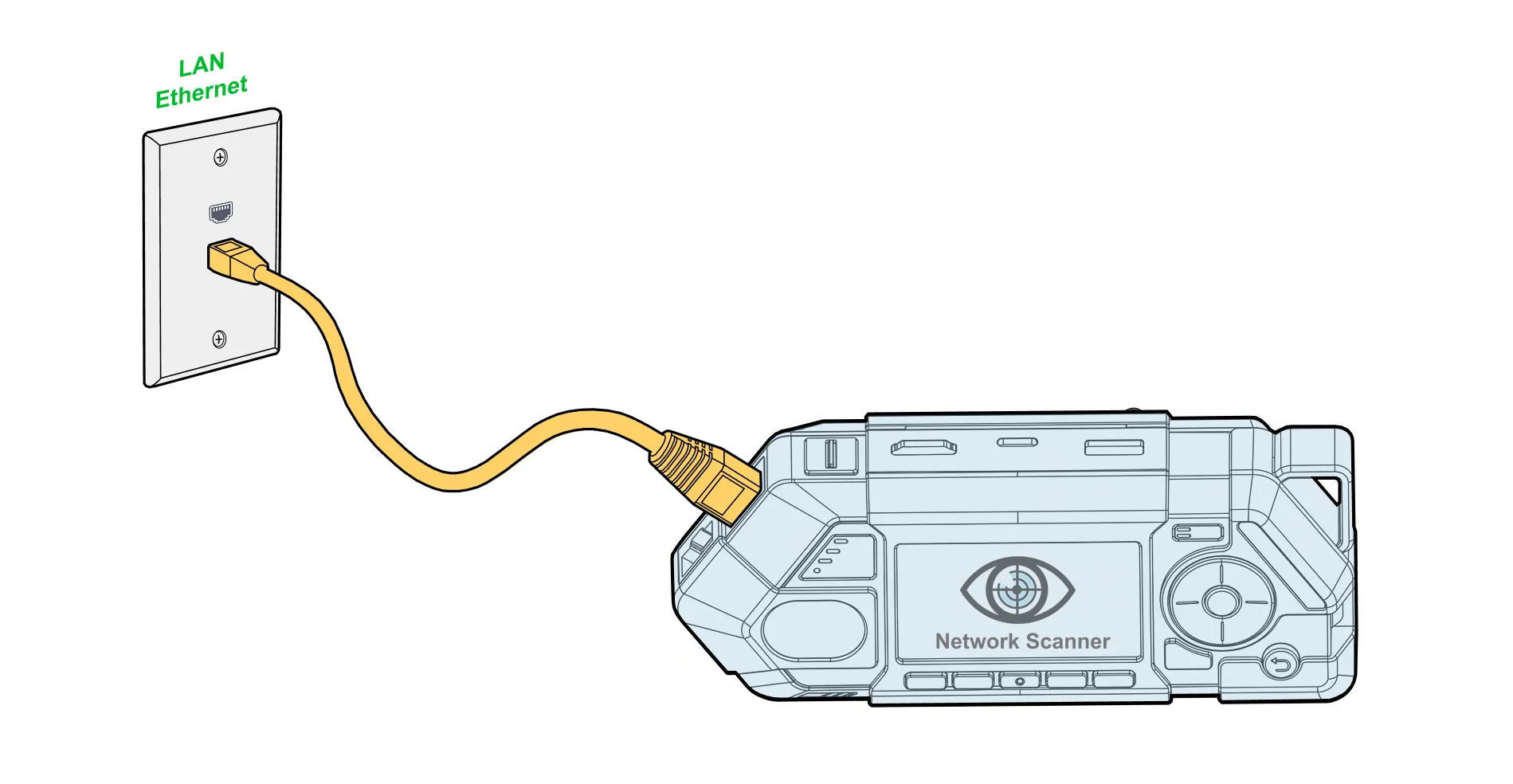
An application that gradually enables network layers from L2 to L3 while simultaneously sniffing traffic in promiscuous mode. Both Passive and Active modes are available.
In Passive mode, Flipper One only listens and observes existing traffic. In Active mode, it can query the network (for example: request an address, probe services, or enumerate basic network configuration). Users see a list of observed networks and can proceed with the selected one.
User story
I have access to an unknown LAN and want to understand what’s happening inside it. I want to learn the network configuration (IPv4 DHCP / IPv6), see which hosts are online by observing ARP traffic, and discover what services are present. I also want to know whether the Ethernet port uses VLANs and what IP settings I should configure to connect correctly.
First, I want a fully passive mode that does not generate traffic (for example, no DHCP requests) and only observes broadcasts like ARP and IPv6 neighbor discovery. Then I want to manually step forward, layer by layer, enabling active discovery when I decide it’s safe — such as requesting an IP address, checking VLAN tagging, and probing common services.