#10: Run your own Flipper One
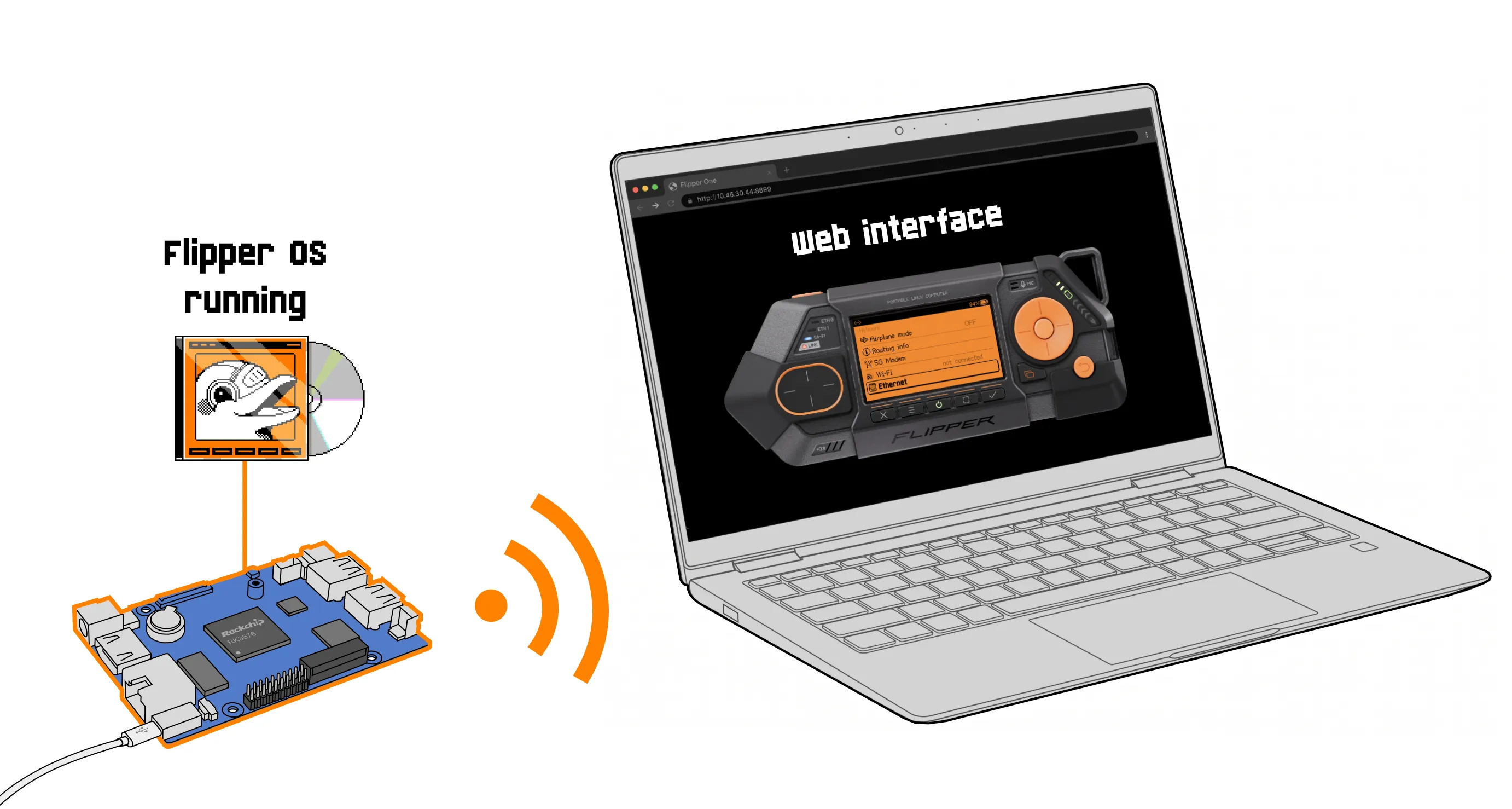
We're building Flipper OS, the Linux-based operating system for Flipper One. And you don't have to wait for the official release to try it out. Install Flipper OS on a supported single-board computer (SBC) and explore Flipper One UI, App Manager, and ready-made OS profiles — all before Flipper One is out. Read on to get started.
What you can try today
Once Flipper OS is installed, you can explore:
- FlipCTL UI — try the pixel-perfect UI designed for Flipper One right in your browser.
- App Manager — install and run apps right from FlipCTL UI. Yes, Doom already runs.
- OS profiles — try five profiles (Minimal, No Graphics, TV Media Box, Router, and Desktop), clone them, and create your own.
Flipper OS without Flipper One
Flipper OS is built for the Rockchip RK3576 system-on-chip (SoC). That means it can also run on other RK3576-based SBCs already on the market. You might even own one.
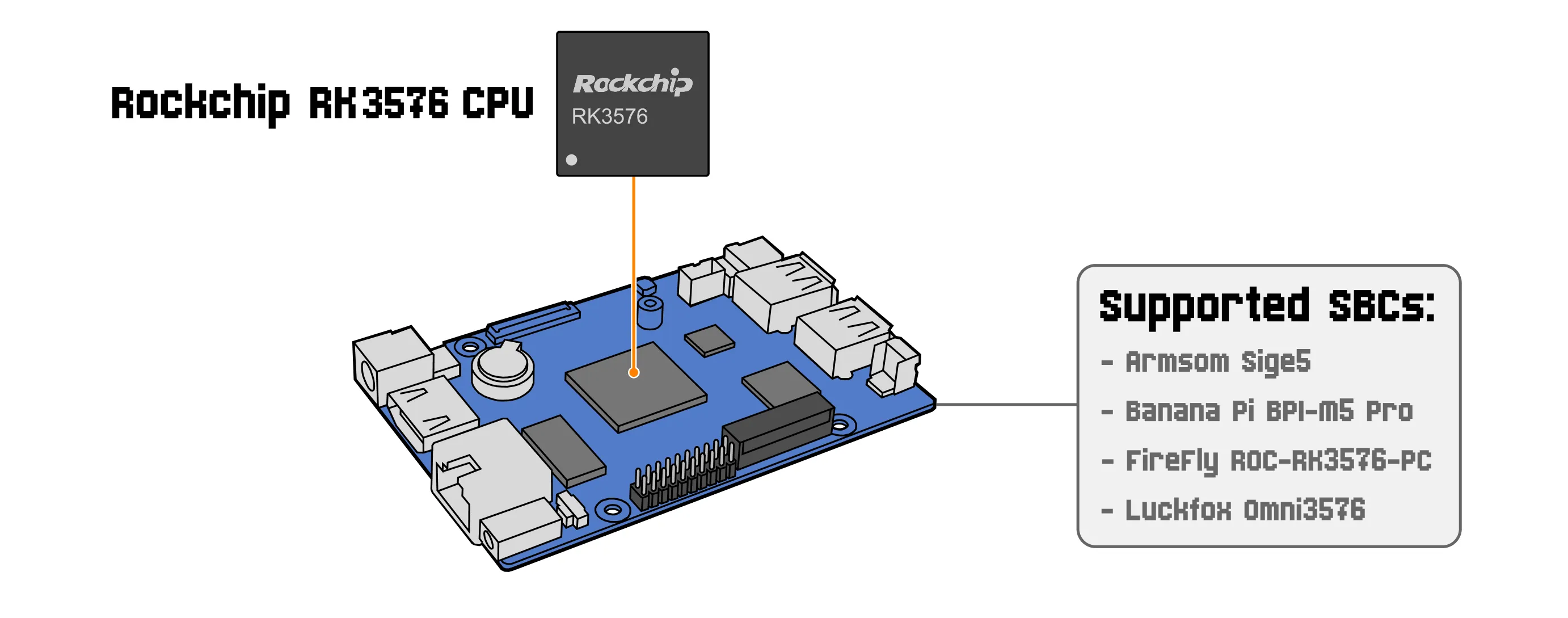
SBCs that can now run Flipper OS: - Armsom Sige5 - recommended - Banana Pi BPI-M5 Pro - FireFly ROC-RK3576-PC - Luckfox Omni3576
What you'll need
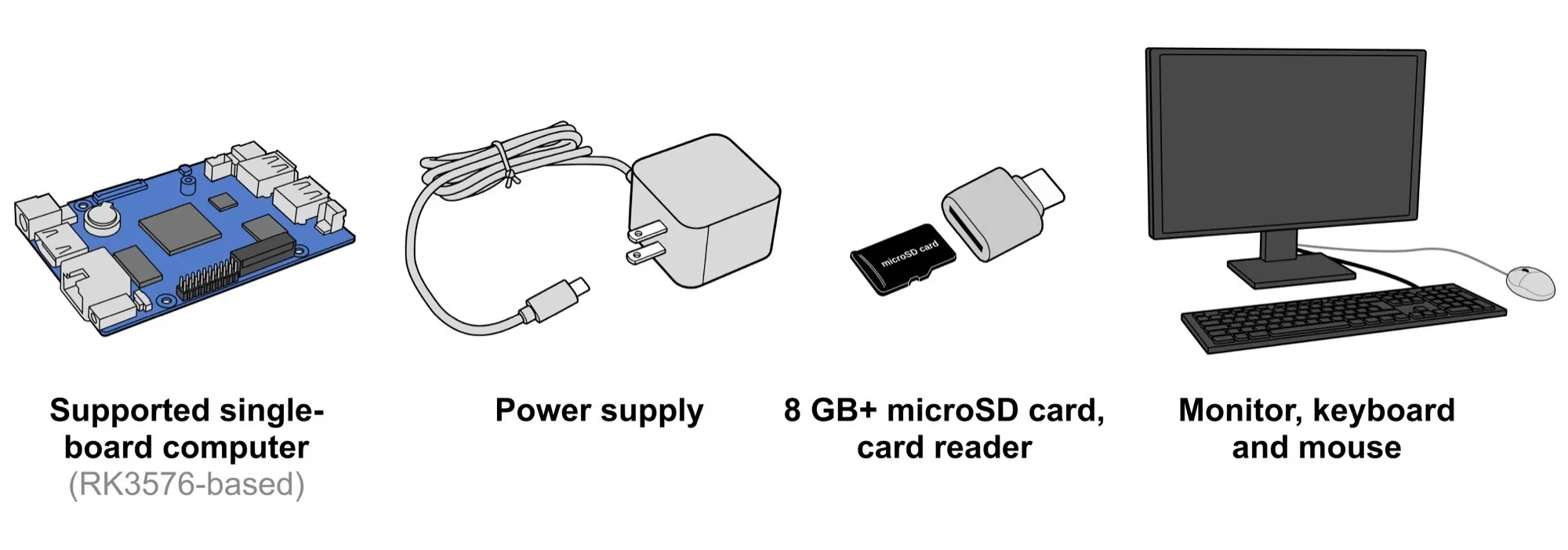
To try Flipper OS, you'll need:
- A supported SBC
- A power supply for the SBC
- A microSD card (8 GB or larger) + card reader
- A monitor, keyboard, and mouse
Install Flipper OS
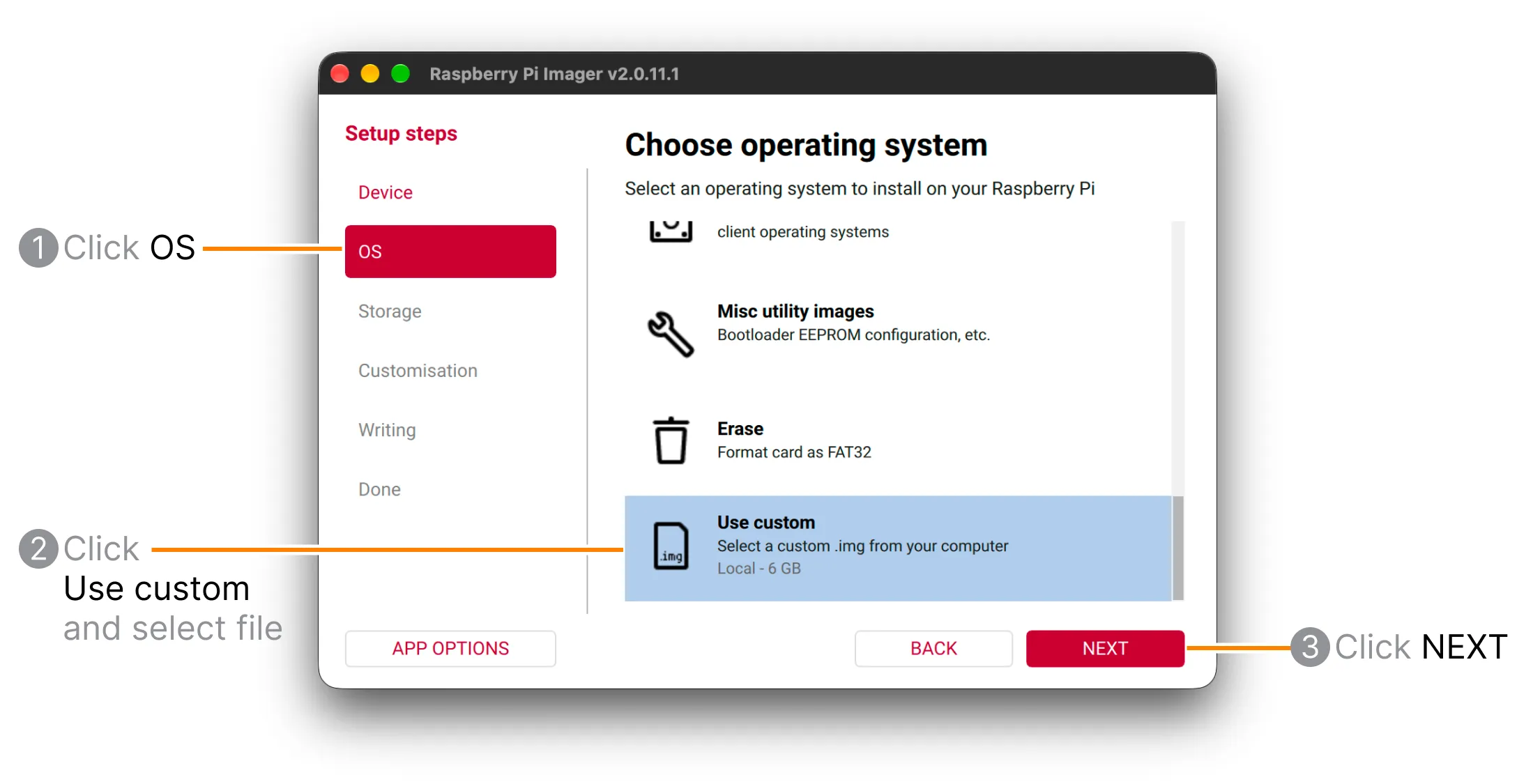
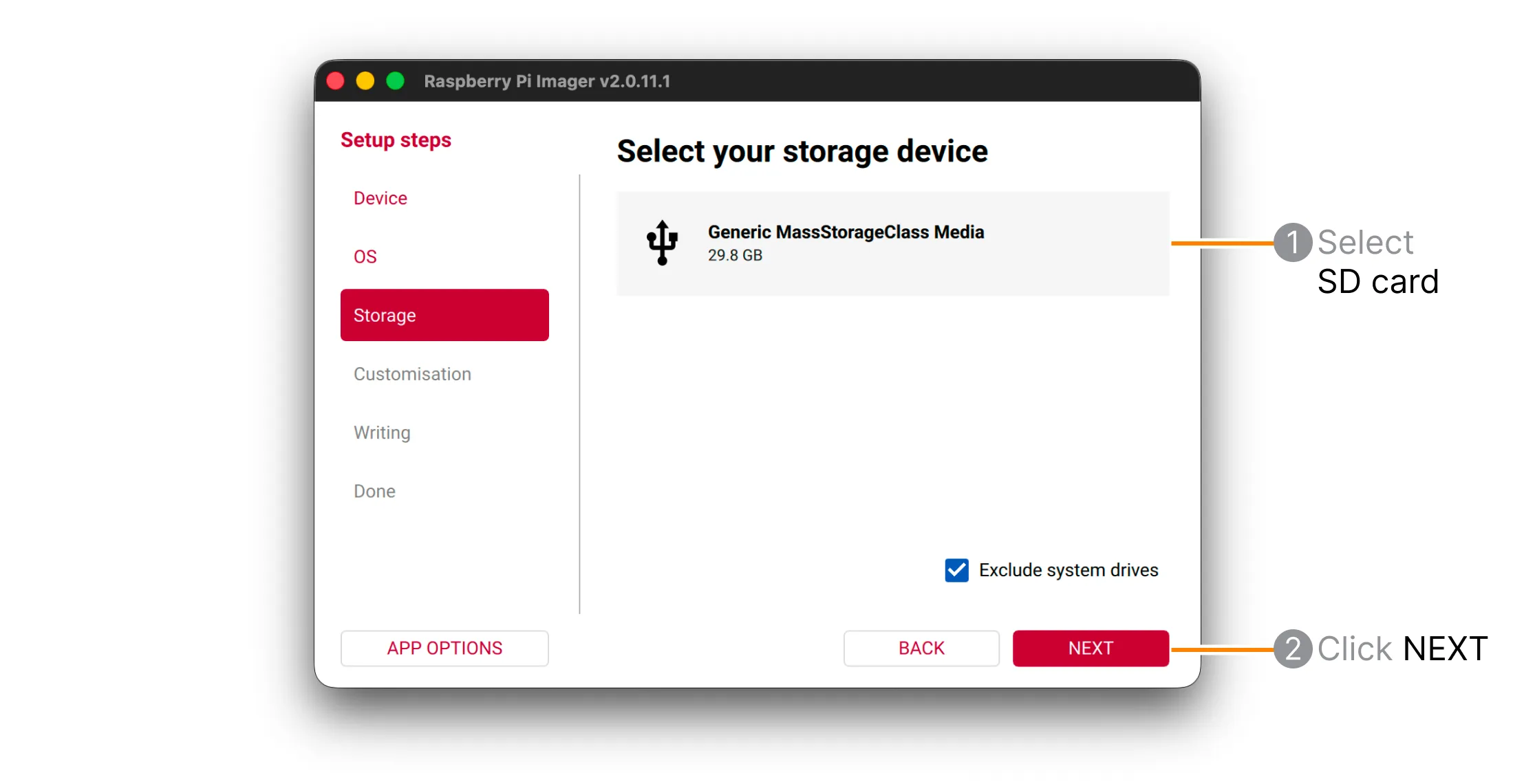
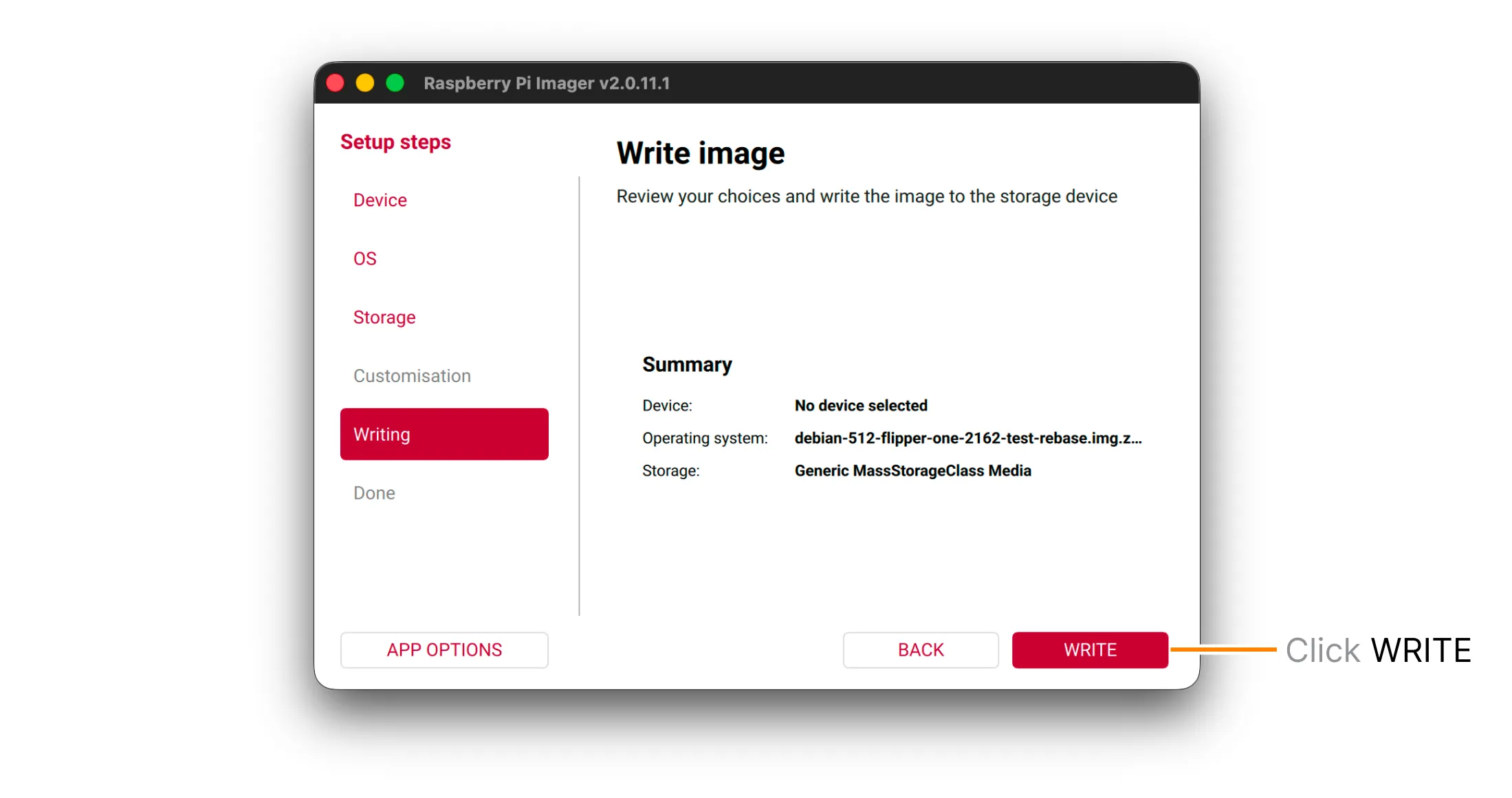
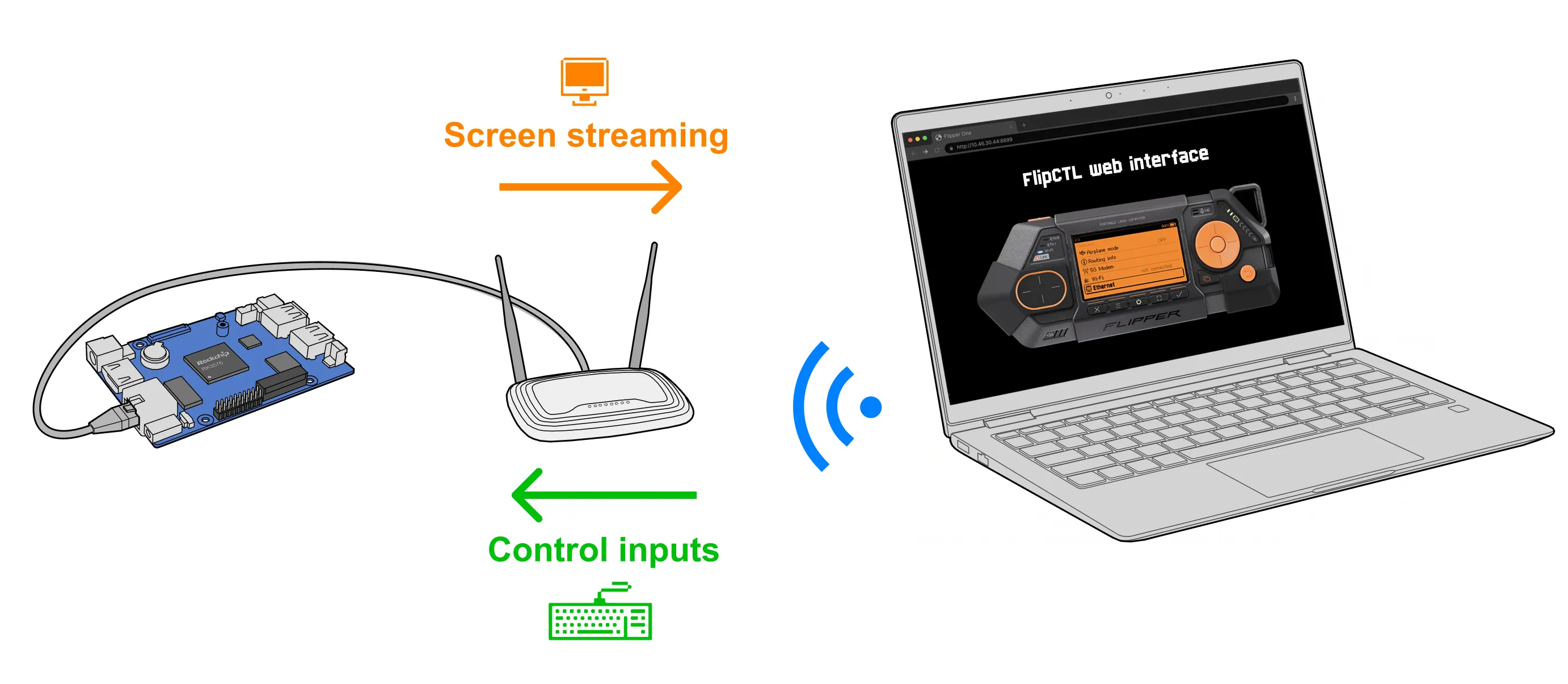
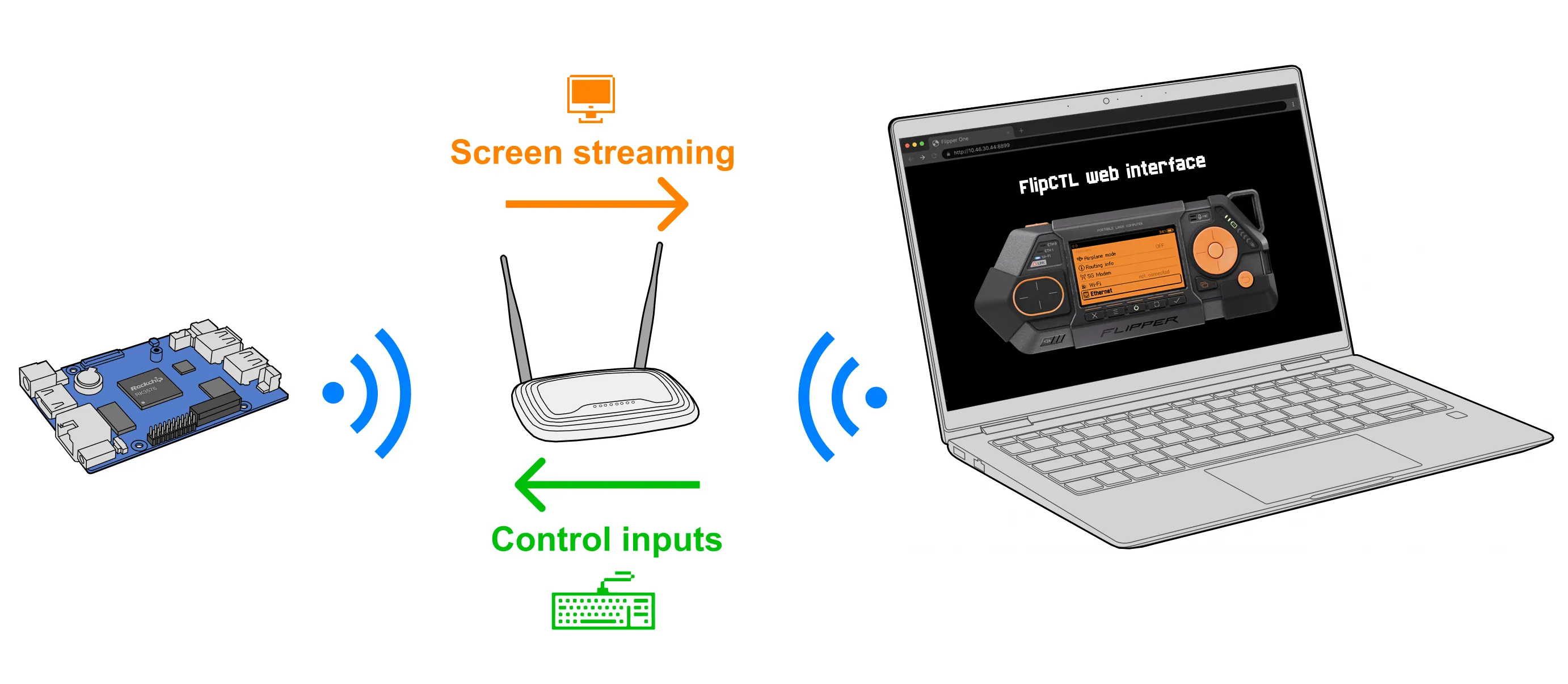
The easiest way to get Flipper OS on an SBC is to flash the OS image to a microSD card, then insert it into your SBC and boot it up. Once it boots, you can open FlipCTL UI in a browser on another PC or laptop connected to the same network.
For alternative installation methods and detailed instructions, see the How to install a Linux image page.
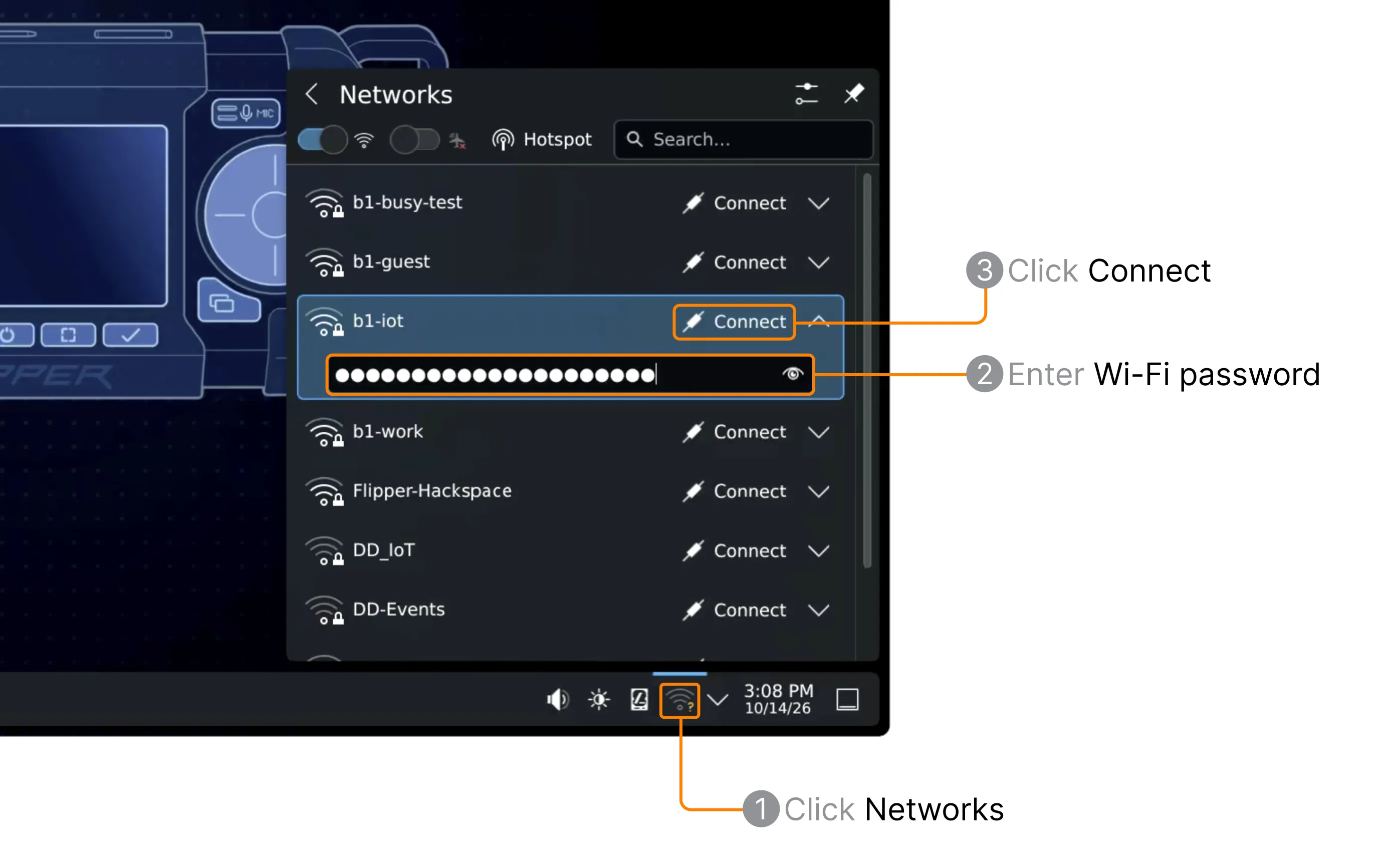
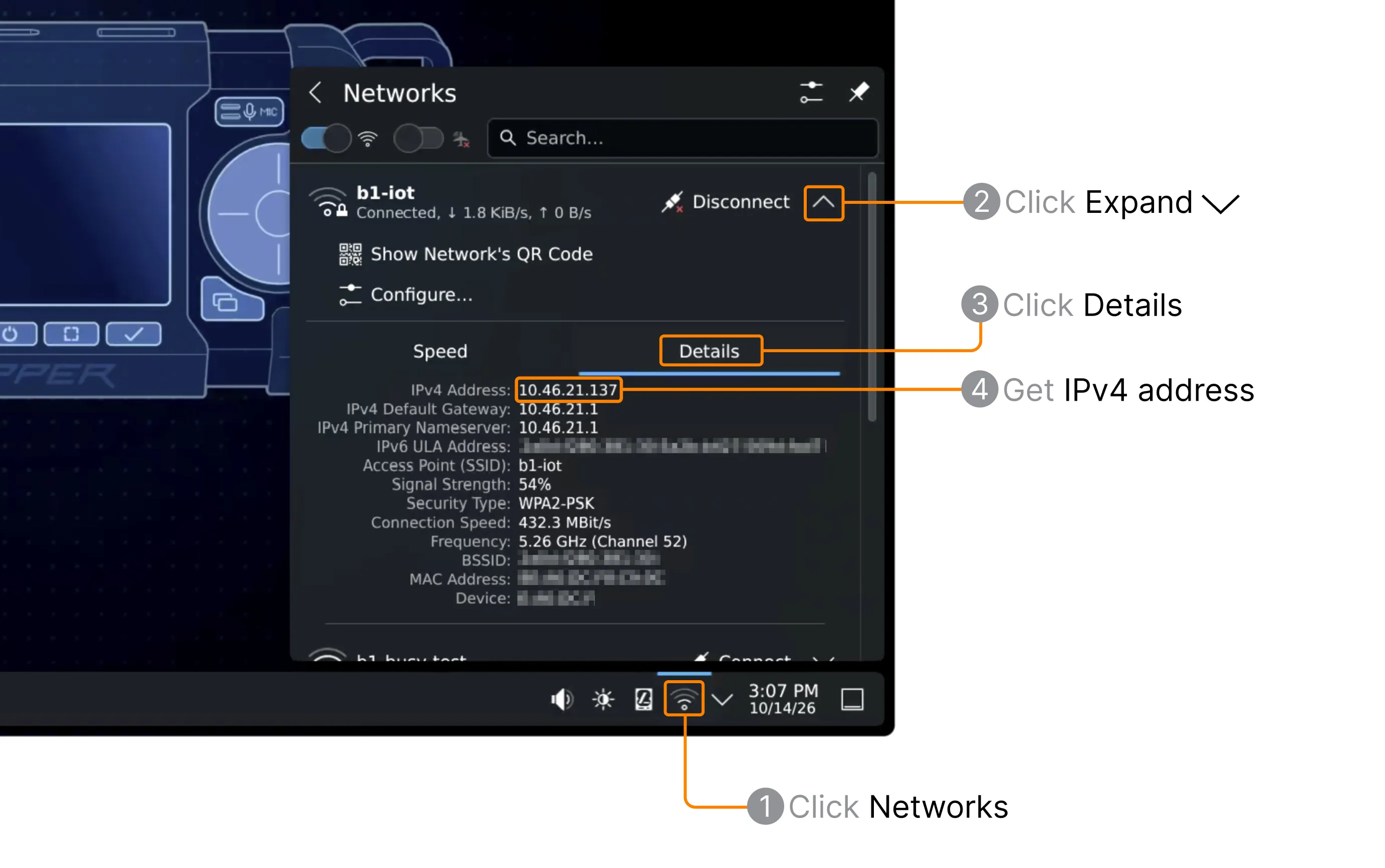
Try FlipCTL remote control
Open this URL in a browser to access the FlipCTL web interface: http://[Board IPv4 address]:8899.
ㅤ
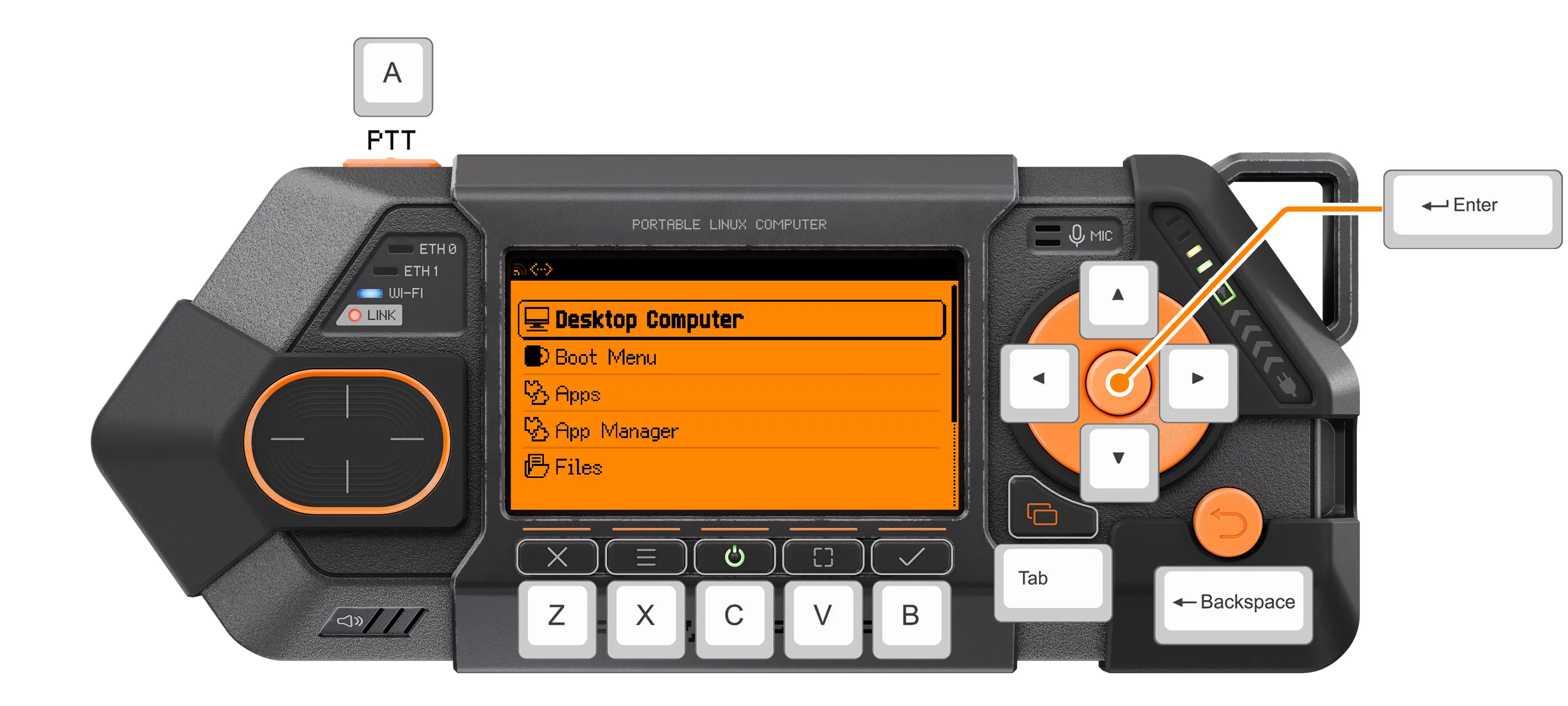
You can use your mouse to navigate the interface, launch apps, and open the boot menu to switch between profiles. Keyboard controls are available too. Click Show controls in the top-left corner to view the keyboard shortcuts.
Install apps using App Manager
App Manager lets you install apps from an online catalog adapted for the Flipper One's screen and controls. Go to App Manager → Install to browse available apps, select one, and press Install.
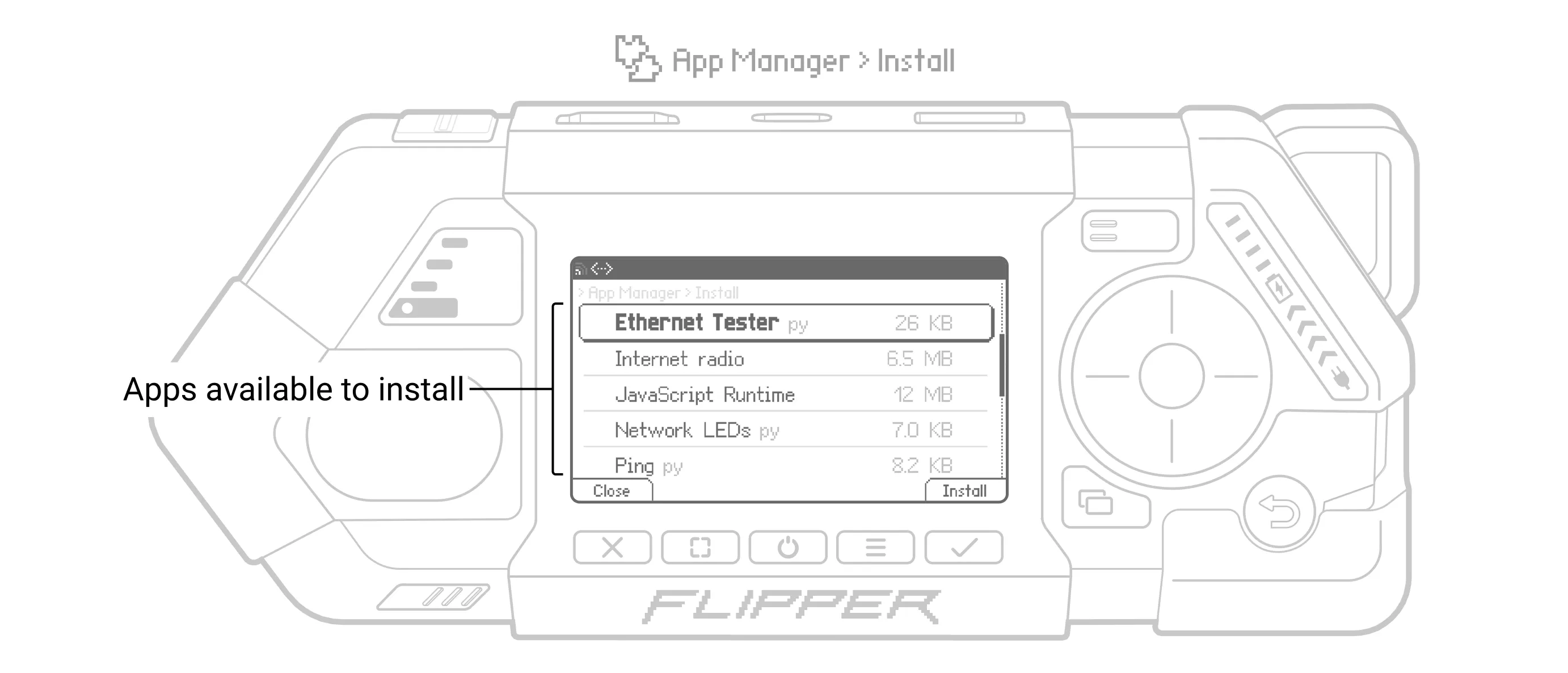
Installed apps appear in the Apps folder in the main menu, organized by category.
Explore OS profiles
Go to Settings → Boot Menu. It's the same menu that appears on the Flipper One display at startup. We covered it in more detail in Dev Log #9, and you can see it in action in the video below.
Each OS profile includes a root filesystem (rootfs), a Linux kernel, and a Device Tree. Think of each profile as a separate Debian installation, with its own apps, settings, data, and Linux kernel.
- Minimal: A minimal Linux system without desktop environment.
- No Graphics: A minimal system with video hardware disabled to reduce power consumption and free up system resources.
- Desktop: A full Debian desktop environment powered by KDE, with Chromium, MPV (with H.264 hardware acceleration) preinstalled.
- TV Media Box: Automatically launches Kodi player with HDMI-CEC enabled, so you can control it using your TV remote.
- Router: A minimal system without a desktop environment configured as a Wi-Fi router. The ETH0 port acts as the WAN port to connect to your internet provider. The device creates a Wi-Fi access point and shares the internet connection over Wi-Fi, ETH1, and USB-C. An iperf3 server starts automatically for network speed testing.
You can boot, clone, and customize these OS profiles. The FlipCTL web interface starts automatically in all built-in profiles, so you can control the system from your browser.
Join Flipper One development and make your contribution
Flipper OS is under active development. We welcome everyone who wants to test it, share feedback, and help shape its future.
- Pick a task: Browse the 🚧 Open tasks page for ways to contribute.
- Share your project: Built something that helps test or improve Flipper One? Add it to the community projects page.
- Contribute module & accessory 3D models: Check out the contribution guide and open a pull request in flipperdevices/flipperone-mechanics.
See you in the next Dev Log!